



Mini PC for Home Theatre: The Complete Setup Guide
If your smart TV is running slowly, or if you have a large catalogue of downloaded films that a standard streaming stick cannot play, you need a better solution for your lounge. A mini PC provides the exact same power as a full-sized desktop computer, but it is small enough to sit neatly next to your telly.
This guide explains exactly why a mini PC is the home theatre upgrade, what hardware specifications you need to look for, and how to set it up for the best picture and sound quality.

Why Use a Mini PC Instead of a Streaming Stick or Smart TV?
Most people use the software built into their television or buy a device like an Amazon Fire Stick. While these are cheap, a mini PC offers three major advantages that standard devices cannot match:
- Complete Control Over Software: Smart TV manufacturers dictate which applications you can install. If they stop supporting an app, you lose access to it. Because a mini PC runs a standard operating system like Windows or Linux, you can use any software you choose. You can watch streaming services through a standard web browser, install ad-blockers, and use bespoke media software.
- No Buffering on High-Resolution Files: Streaming services compress video files, which reduces picture quality. If you want to watch uncompressed 4K films from your own collection, standard streaming sticks often struggle to process the data fast enough. A mini PC can read massive video files directly from an attached hard drive, guaranteeing perfect playback with no buffering.
- Long-Term Upgrades: When a smart TV becomes slow, you have to buy a new television. When a mini PC slows down, you can open the case and install more RAM or a faster storage drive, extending the life of the machine by several years.
What Specifications Do You Need for a Home Theatre Mini PC?
When buying a mini PC for video playback, you do not need the most expensive gaming model. However, you must buy components that can process high-resolution video without dropping frames.
- Processor (CPU): For basic 4K video playback and streaming Netflix or BBC iPlayer, an entry-level processor like the Intel N100 is perfectly fine. If you want to run heavy media server software or play video games, look for an AMD Ryzen 5 (5000 or 7000 series) or an Intel Core i5.
- Memory (RAM): Do not buy a machine with 4GB of RAM. 8GB is the absolute minimum for modern operating systems, but 16GB is highly recommended. This stops the computer from slowing down when navigating large media menus.
- Internal Storage (SSD): The computer must have an NVMe Solid State Drive (SSD) for its main operating system. This ensures the machine boots up in seconds. 256GB is enough for the operating system and basic applications.
- Cooling Systems: Look for a "fanless" or passively cooled mini PC if you want a completely silent machine in your lounge. Actively cooled mini PCs use fans; they are more powerful, but they emit a low humming noise.
Where Should You Store Your Downloaded Films?
If you have a large media collection, the internal SSD on the mini PC will fill up quickly. You have two options for expanding your storage:
- Direct USB Hard Drives: The cheapest method is plugging large, external Hard Disk Drives (HDDs) into the USB ports on the back of the mini PC. The downside is that mechanical hard drives make clicking noises when they are reading data.
- Network Attached Storage (NAS): A NAS is a separate box of hard drives that connects to your home internet router. You can put the noisy NAS box in a spare bedroom, and the silent mini PC in your lounge will access the video files over your home network.
How to Connect the Mini PC for the Best Audio and Video
Getting the cables and settings right is crucial for a high-quality home theatre experience.
- Networking: Always use a wired Ethernet cable to connect your mini PC to your router if you are playing uncompressed 4K files over your network. Wi-Fi will often struggle with the large data transfer, causing the film to pause.
- HDMI 2.0 vs 2.1: To watch films in 4K at 60 frames per second, the mini PC requires an HDMI 2.0 port. If you plan to play modern video games at 120 frames per second on a high-end television, you must ensure the mini PC has an HDMI 2.1 port and that you are using a compatible high-speed cable.
- Surround Sound (Audio Passthrough): If you use an Audio-Visual (AV) receiver and separate speakers, you must enable a setting called "Audio Passthrough" in your media software. This forces the mini PC to send the raw audio data straight down the HDMI cable, allowing your AV receiver to decode the true surround sound correctly.
The Best Media Centre Software: What Should You Install?
You have two main choices for exactly how the software looks and operates on your television screen:
| Software Setup | Best Use Case | Key Benefits |
| Windows 11 + Plex or Jellyfin | General-purpose use and large media libraries. | Gives you a full desktop for web browsing. Plex and Jellyfin automatically download film posters and episode descriptions to make your files look like a professional streaming service. |
| LibreELEC (Kodi) | Dedicated local video playback. | This is a lightweight operating system built entirely around the Kodi media player. It bypasses the standard Windows desktop and loads straight into a TV-friendly menu. |
How to Control a Mini PC from the Sofa
Using a standard wired mouse on the sofa is impractical. Furthermore, you do not want to walk over to the TV unit to turn the machine on every day.
- Wireless Media Keyboards: Buy a compact wireless keyboard with a built-in trackpad, such as the Logitech K400. This gives you mouse control and easy typing without needing a flat surface.
- Air Mice: An air mouse looks like a standard TV remote, but you move the on-screen cursor by pointing the remote at the screen and moving your wrist.
- Wake-on-LAN: This is a setting in the computer's basic system menu. It allows the mini PC to maintain a low-power connection to your router when switched off. You can then use a smartphone app to send a signal over your Wi-Fi to switch the computer on from the sofa.
Ready to Build Your Home Theatre? Our Top Recommendation
If you are ready to make the switch but aren't sure which machine to buy, you need a mini PC that balances processing power, quiet cooling, and excellent connectivity.
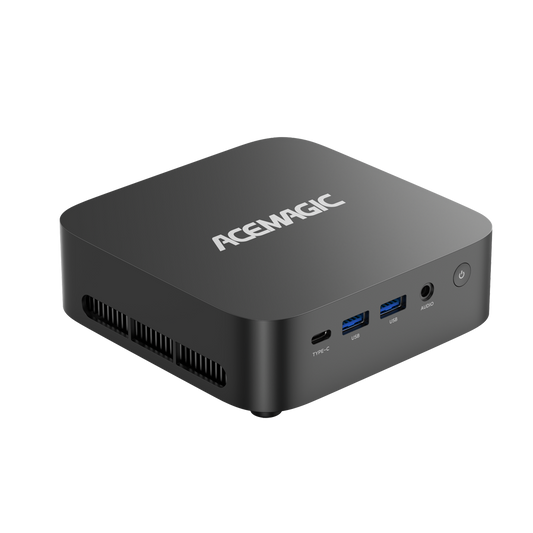
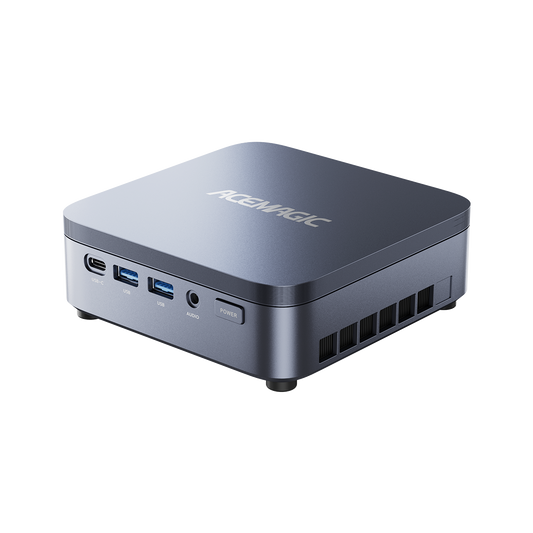
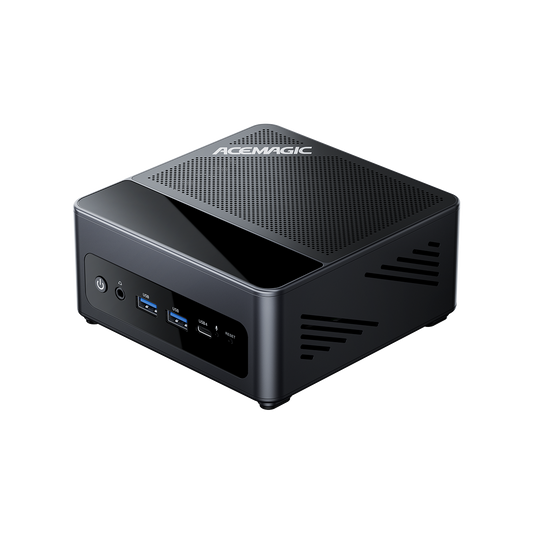
The ACEMAGIC AM06 Pro is an outstanding choice for a lounge setup. Powered by an AMD Ryzen 7 processor and packed with 32GB of RAM, it easily meets the high-end specifications required for flawless 4K video playback, running heavy media servers like Plex, and even handling some casual sofa gaming. Best of all, it supports triple 4K display outputs, ensuring it will work perfectly with your high-resolution television and AV receiver.

AM06 Pro Mini PC
- CPU: AMD Ryzen 7 7730U (8 Cores)
- RAM: 32GB DDR4
- Storage: 1TB NVMe SSD
- Video Output: Triple 4K@60Hz Support
- OS: Windows 11 Pro
FAQ
Can I connect a home theatre to a PC?
Yes, absolutely. You can easily connect a computer to a home theatre system. The most common and effective method is using a standard HDMI cable. You simply plug one end into the HDMI port on your PC and the other directly into your Audio-Visual (AV) receiver or soundbar. This single cable will transmit both the high-resolution video to your television and the uncompressed surround sound directly to your speakers.
What does a Home Theatre PC (HTPC) do?
A Home Theatre PC acts as the central hub for all your lounge entertainment. Instead of relying on a limited smart TV interface, an HTPC provides a full desktop operating system on your main television screen. It allows you to browse the internet, play large, downloaded 4K films directly from a hard drive, access any streaming service through a web browser, run dedicated media server software, and even play video games.
Is 8GB of RAM enough for an HTPC?
Yes, 8GB of RAM is sufficient for a standard home theatre setup. It provides enough memory to run Windows or Linux smoothly, stream 4K video, and play local media files without any stuttering. However, if you plan to run demanding background software like a Plex server for other devices in your house, play modern video games, or keep multiple web browser tabs open simultaneously, upgrading to 16GB is highly recommended to prevent the machine from slowing down.
Which is better: a home theatre or a standalone speaker?
This depends entirely on your budget and the space available in your lounge. A full home theatre system (which includes an AV receiver and multiple separate speakers placed around the room) is significantly better for audio quality. It provides true, immersive surround sound, allowing you to hear audio behind and above you. A standalone speaker or a soundbar is cheaper, takes up less space, and requires fewer cables, but it can only project sound forward from the front of the room.
What are the benefits of having an HTPC?
The primary benefits of an HTPC are complete hardware and software control.
- No Software Restrictions: You are not locked into the software ecosystem of a TV manufacturer. You can install any media player, web browser, or ad-blocker you choose.
- File Compatibility: An HTPC will play absolutely any video or audio file format in existence.
- No Buffering: By playing massive 4K video files from a local hard drive, you eliminate the buffering and compression associated with internet streaming.
- Longevity: Because an HTPC uses standard computer parts, you can easily open the case and upgrade the RAM or storage in the future, rather than throwing the whole device away when it gets old.