



The Best Mini PCs for Proxmox in 2026: A Homelab Hardware Guide
Nobody wants a loud, power-hungry rack server in their closet anymore. Consolidating your network services—like Home Assistant, NAS drives, and firewalls—into a single, quiet mini PC is the better way to build a homelab. Proxmox Virtual Environment (VE) handles the software side perfectly, but picking the right hardware is where things get tricky.
Mini PCs save space and electricity, but buying the wrong one leads to bottlenecked virtual machines (VMs), restricted storage, and limited routing options. This guide covers the exact hardware you need for a stable Proxmox setup and looks at the current ACEMAGIC lineup to help you find the right fit for your network.

Why Use a Mini PC for Proxmox?
- Lower Power Bills: Used enterprise servers often idle at 100W or more. Modern mini PCs typically idle between 15W and 25W. If you run your server 24/7, that power efficiency can literally pay for the hardware itself in a year or two.
- Size and Noise: You can hide a mini PC behind a monitor, on a bookshelf, or inside a media cabinet. They run almost silently, meaning you don't have to deal with the jet-engine fan noise of a 1U or 2U rack server.
Hardware Requirements for Proxmox
CPU Cores and Virtualization
Proxmox needs cores to distribute across your VMs and LXC containers. An 8-core / 16-thread CPU gives you plenty of room to overprovision. Just make sure hardware virtualization (Intel VT-x or AMD-V) is enabled in the BIOS. If you want to pass physical hardware like a network card or GPU directly to a virtual machine, you'll also need a system that supports IOMMU (Intel VT-d or AMD-Vi).
RAM: The Real Bottleneck
You will rarely max out your CPU in a homelab, but you will constantly run out of memory. RAM is the lifeblood of Proxmox. 16GB is the bare minimum if you just want to run a few basic containers. If you plan to run multiple full operating systems and a firewall, aim for 32GB to 64GB.
NVMe Storage
Virtual machines need fast storage to stay responsive. NVMe M.2 SSDs are mandatory here. A motherboard with multiple M.2 slots is a massive bonus, as it lets you separate the Proxmox boot drive from your VM storage pool or set up ZFS mirroring for data redundancy.
The Best ACEMAGIC Mini PCs for Proxmox
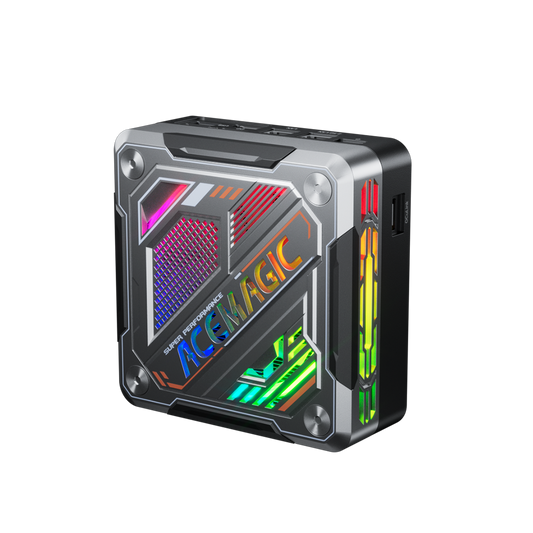
1. The All-Rounder: ACEMAGIC F5A (AMD Ryzen 7 H255)
Powered by the AMD Ryzen 7 H255 (8 cores, 16 threads) and 24GB of LPDDR5 RAM, the F5A handles heavy, multitasking VM workloads easily. What makes it great for a homelab is the expandability. It comes with dual 2.5GbE LAN ports, solid NVMe support, and an OCuLink/USB4 setup that lets you attach external PCIe devices down the road.

ACEMAGIC F5A Mini PC
- AMD Ryzen™ 7 H 255 CPU (Up to 4.9GHz)
- AMD Radeon™ 780M (2700MHz)
- OCuLink support
- Dual-Fan + VC Cooling System
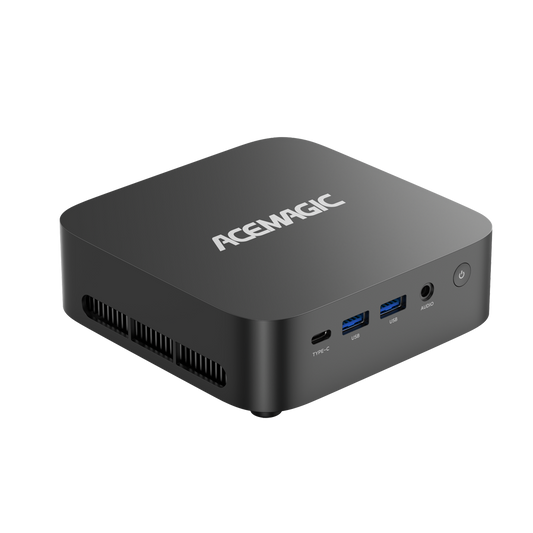
2. For Heavy Workloads: ACEMAGIC Matrix Mini M5 (Core i9)
This unit features an Intel Core i9-14900HX with 24 cores and 32 threads. It's built for heavy users. If you need to run enterprise-grade databases, large Docker deployments, or CPU-intensive virtual environments, this provides the raw compute power to get it done.

ACEMAGIC M5 Mini PC
- Intel® Core™ i9-14900HX / i7-14650HX CPU
- 32GB DDR4 3200MHz Dual Channel RAM
- 1TB M.2 NVMe PCIe 4.0 SSD
- WiFi 6E & Bluetooth 5.2 Support
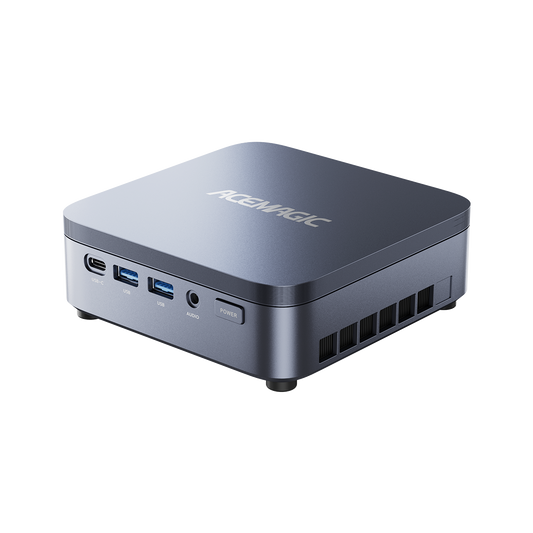
The Dual-NIC Sweet Spot: ACEMAGIC AM06 Pro
The AM06 Pro pairs an AMD Ryzen 7 processor with two dedicated network ports (one 2.5GbE and one 1GbE). That dual-network configuration makes it perfect if you want to virtualize routing software like pfSense or OPNsense alongside your regular Linux and Windows VMs.

ACEMAGIC AM06 Pro Mini PC
- AMD Ryzen™ 7 7730U Processor (8 Cores/16 Threads)
- 32GB DDR4 RAM + 1TB M.2 SSD
- Dual Ethernet LAN (2.5Gbps + 1.0Gbps) for secure, high-speed networking
- Triple 4K@60Hz display output via HDMI, Type-C, and DisplayPort
Do You Really Need Dual NICs?
- Isolating Traffic: Having two network ports lets you isolate your traffic. You can use one port just for the Proxmox web interface and management, leaving the full bandwidth of the second port for your VM data.
- Virtualized Firewalls: If you want Proxmox to replace your physical home router with a virtual firewall (like pfSense), two ports are mandatory. One port acts as the WAN for incoming internet, and the other acts as the LAN going out to your switch.
FAQ
Can I run Proxmox over Wi-Fi?
Technically, yes, if you heavily modify Debian via the command line. But you shouldn't. Wi-Fi drops packets and adds latency. A bare-metal hypervisor needs a hardwired Ethernet connection to remain stable.
How much RAM does Proxmox actually use?
The base OS only needs about 1GB to 2GB of RAM. However, if you use the ZFS file system, Proxmox will automatically grab up to 50% of your total RAM to use as an Adaptive Replacement Cache (ARC) to speed up storage. Don't worry if your idle server shows high memory usage—ZFS releases that cached RAM instantly the moment a VM actually needs it.
Is an 8-core CPU enough?
Yes. Because Proxmox lets you overprovision CPU cores, an 8-core chip can easily manage dozens of lightweight, idle services at the same time without breaking a sweat.
Final Thoughts
Moving your homelab to a mini PC is an efficient upgrade. The hardware you choose ultimately dictates how stable your network will be, so prioritize RAM, fast storage, and the right network layout.
Right now, the ACEMAGIC F5A hits the sweet spot for most Proxmox builds thanks to the Ryzen 7 H255, dual NICs, and OCuLink expandability. Check out the ACEMAGIC lineup to see current pricing, and drop a comment below letting us know what services you plan to host first!