



Building an AI Workstation: Complete Guide to Hardware, Performance, and Budget Planning
Artificial intelligence is no longer limited to cloud platforms and enterprise data centers. Developers, researchers, and enthusiasts can now run large language models (LLMs), AI image generators, and machine learning workloads directly on local hardware. However, AI workloads place unique demands on a computer, making component selection far more important than for a typical desktop PC.
In this guide, you'll learn how to build an AI workstation, choose the right hardware, and balance performance with budget to create a system that meets your specific AI needs.

What Is an AI Workstation?
How an AI Workstation Differs from a Standard PC
A standard PC is built for general multitasking, and a gaming PC is optimized for high frame rates and low latency. An AI workstation is built for sustained, heavy computational throughput.
- AI Training vs. AI Inference: Training a model requires massive memory and compute power to adjust billions of parameters over hours or days. Inference (running an already-trained model) is less demanding but still requires high VRAM to hold the model in memory.
- Workstation vs. Gaming PC: While both rely heavily on GPUs, AI workstations prioritize Video RAM (VRAM) capacity and PCIe lane availability for multi-GPU setups over raw clock speeds or RGB aesthetics.
- Local AI vs. Cloud-Based AI: A local workstation gives you absolute data privacy, elimination of network latency, and no recurring subscription or compute costs, unlike renting instances on AWS or RunPod. (Note: While network latency is removed, local hardware still introduces processing latency depending on compute capabilities).
Common AI Workloads
Understanding what you will run dictates your hardware. Common local AI workloads include:
- Running LLMs locally: Utilizing tools like Llama.cpp or Ollama.
- Fine-tuning language models: Customizing models via LoRA or QLoRA.
- Image generation: Running Stable Diffusion or Midjourney alternatives.
- Video generation: Processing frame-by-frame AI interpolations.
- Machine learning development: Writing and testing PyTorch or TensorFlow scripts.
- Data science and analytics: Processing massive CSVs, Pandas dataframes, or vector databases.
Define Your AI Use Case Before Buying Hardware
Hardware needs scale linearly with the complexity of your models. Define your tier before spending a dime.
For Beginners
- Workload: Running ChatGPT alternatives (like Llama 3 8B) locally, experimenting with open-source models on Hugging Face, and learning the basics of Python-based AI development.
- Focus: A single, capable GPU with decent VRAM.
For Developers
- Workload: Building and testing AI-integrated applications, conducting lightweight model fine-tuning, and building Retrieval-Augmented Generation (RAG) pipelines.
- Focus: High VRAM, robust RAM, and fast storage for quick dataset swapping.
For Researchers and Professionals
- Workload: Training custom models from scratch, processing massive unstructured datasets, and running multi-GPU distributed workloads.
- Focus: Multiple high-tier GPUs, workstation-grade CPUs (Threadripper/Xeon) for maximum PCIe lanes, and massive system memory.
The Most Important Component: Choosing the Right GPU
Why the GPU Matters More Than the CPU
In an AI workstation, the GPU is the engine. AI models rely on parallel processing—the ability to perform thousands of simultaneous mathematical operations. While a top-tier CPU might have 24 cores, a modern GPU has thousands of CUDA cores. Furthermore, AI acceleration heavily depends on specialized Tensor Cores and, crucially, VRAM to load the model layers.
Recommended GPU Tiers
- Entry-Level AI Workstation: The Nvidia RTX 4060 Ti (16GB version) is the undisputed king of entry-level AI. It provides enough VRAM to load small-to-medium models at a budget-friendly price.
- Mid-Range AI Workstation: The RTX 4080 Super (16GB) or a used RTX 3090 (24GB). The RTX 3090 remains a favorite for local AI due to its massive 24GB VRAM pool, offering the best balance of price and performance for fine-tuning.
- High-End AI Workstation: The RTX 4090 (24GB) or workstation-class cards like the RTX 6000 Ada Generation (48GB). These are required for large language models, complex RAG setups, and advanced AI video generation.
How Much VRAM Do You Really Need?
| Use Case | Recommended VRAM |
|---|---|
| Small LLMs (up to 8B) | 8–12GB |
| 7B–13B Models | 12–24GB |
| 30B+ Models | 24GB+ |
| Professional AI Training | 48GB+ |
Selecting the Right CPU
Recommended CPU Categories
- Budget Builds: Mid-range processors like the Intel Core i5-13600K or AMD Ryzen 5 7600X.
- Performance Builds: High-core-count CPUs like the Intel Core i9-14900K or AMD Ryzen 9 7950X, ideal for heavy data manipulation alongside GPU inference.
- Professional Workstations: Workstation-class processors like AMD Threadripper PRO or Intel Xeon. These are mandatory if you need more than two GPUs, as standard consumer CPUs do not have enough PCIe lanes.
How Much RAM Do You Need for AI?
Memory Requirements by Workload
- Basic AI Development: 32GB RAM (The absolute minimum for modern AI dev).
- Serious Local AI Usage: 64GB RAM (The sweet spot for most developers).
- Professional Training Workloads: 128GB+ RAM (Required for large datasets).
Storage Recommendations for AI Workstations
AI development involves moving massive files. A single model checkpoint can be 5GB to 50GB. NVMe SSDs provide the read/write speeds necessary for fast model loading, rapid dataset processing, and writing frequent training checkpoints without stalling the system.
- Primary Drive (1TB Min): NVMe SSD for the OS, Python environments, CUDA toolkits, and applications.
- AI Project Drive (2TB - 4TB+): A dedicated, high-speed NVMe SSD strictly for holding active models, vector databases, and training datasets.
- Archive Storage: A high-capacity HDD (or cheaper SATA SSD) for long-term storage of old checkpoints and scraped data.
Motherboard and Expansion Planning
Your motherboard dictates your upgrade path. Standard consumer CPUs and motherboards generally support a maximum of two GPUs due to limited PCIe lane availability. If you plan to scale to 3 or 4 GPUs for heavy training, you must invest in a High-End Desktop (HEDT) or workstation motherboard (e.g., TRX50/WRX90 for Threadripper).
- Physical spacing: Consumer GPUs like the RTX 4090 are massively thick (3 to 4 slots). Most standard motherboards physically cannot fit two of them without specialized open-air frames or riser cables.
- Networking: 10GbE or Wi-Fi 7 is crucial if you are pulling large models from Hugging Face or pushing docker images to cloud servers.
Power Supply Requirements
To calculate power needs, add the maximum TDP of your CPU and your GPU(s), add 100W for the motherboard and peripherals, and then add a 20% buffer for transient power spikes and upgrade headroom.
- 850W: Sufficient for a single mid-range GPU (e.g., RTX 4070 Ti) and standard CPU.
- 1000W: The baseline for a single high-end GPU (RTX 4090).
- 1500W+: Mandatory for multi-GPU setups (e.g., dual RTX 4090s).
Look for 80 Plus Gold or 80 Plus Platinum certified power supplies. They waste less power as heat, saving you money on your electric bill and keeping the system cooler during multi-day runs.
Cooling and Airflow for AI Workloads
Unlike gaming, which features fluctuating utilization, AI training and complex inference lock the GPU at near 100% utilization for hours or even days, creating a massive, continuous thermal load.
- Air Cooling: Extremely reliable, zero risk of leaks, and cheaper. However, it is bulky, blocks PCIe slots, and struggles with tightly packed multi-GPU setups.
- Liquid Cooling (AIO or Custom Loop): Offers superior sustained thermal management. Note: Custom liquid cooling loops specifically allow for replacing bulky air coolers with slim water blocks, enabling single-slot GPUs in multi-card builds. Standard AIO coolers still retain thick pump housings.
Sample AI Workstation Builds
Budget AI Workstation ($1,000–$1,500)
- Workload: Learning AI, basic Python, running local 8B parameter models.
- GPU: Nvidia RTX 4060 Ti (16GB)
- CPU: AMD Ryzen 5 7600X
- RAM: 32GB DDR5
- Storage: 2TB NVMe Gen4 SSD
- PSU: 750W 80+ Gold
Mid-Range AI Workstation ($2,000–$3,000)
- Workload: Serious local LLM usage, fine-tuning, RAG development.
- GPU: Nvidia RTX 4080 Super (16GB) or Used RTX 3090 (24GB)
- CPU: Intel Core i7-14700K or AMD Ryzen 9 7900X
- RAM: 64GB DDR5
- Storage: 1TB NVMe (OS) + 2TB NVMe (Projects)
- PSU: 1000W 80+ Gold
High-End AI Workstation ($4,000+)
- Workload: Professional AI development, large model fine-tuning, multi-modal workflows.
- GPU: 1x or 2x Nvidia RTX 4090 (24GB)
- CPU: AMD Ryzen 9 7950X (for 1 GPU) or AMD Threadripper PRO (mandatory for 2+ GPUs due to PCIe lane limits and physical slot spacing).
- RAM: 128GB DDR5
- Storage: 2TB NVMe (OS) + 4TB NVMe Gen5 (Projects)
- PSU: 1000W 80+ Platinum (Single GPU) or 1500W+ 80+ Platinum (Dual GPUs)
Frequently Asked Questions
Is NVIDIA Better Than AMD for AI?
Yes, NVIDIA is generally better than AMD for AI workloads, especially for machine learning, deep learning, and large language model development.
NVIDIA GPUs have a stronger advantage because of the mature CUDA ecosystem, extensive AI framework support, and optimized libraries such as cuDNN, TensorRT, and PyTorch integrations. Most AI software tools are developed and tested primarily on NVIDIA hardware.
AMD GPUs can provide competitive performance and often offer better price-to-VRAM ratios, especially with newer ROCm-supported cards. However, software compatibility is still more limited compared with NVIDIA.
For most AI users, researchers, and developers, NVIDIA GPUs are the safer choice, while AMD may be attractive for users who prioritize cost efficiency and are comfortable with additional setup.
How Much VRAM Is Needed for Running Llama Models?
The amount of VRAM needed to run Llama models depends on the model size, quantization level, and performance requirements.
Typical VRAM requirements:
| Llama Model Size | Recommended VRAM |
|---|---|
| Llama 3 8B | 8GB–12GB VRAM |
| Llama 3 70B (quantized) | 24GB–48GB VRAM |
| Large 70B+ models | 48GB–80GB+ VRAM |
For example, a 7B–8B Llama model can run comfortably on a consumer GPU with 8GB–12GB VRAM using 4-bit quantization. Larger models require professional GPUs or multi-GPU setups.
For AI workstation users, having more VRAM usually provides better flexibility because it allows running larger models, longer context windows, and more complex AI workloads.
Can I Train AI Models Without a Dedicated GPU?
Yes, you can train small AI models without a dedicated GPU, but a GPU is strongly recommended for serious AI development.
CPUs can handle basic machine learning tasks, small datasets, and AI education projects. However, deep learning models such as LLMs, computer vision models, and generative AI systems require massive parallel computing power, making GPUs much faster.
A dedicated GPU provides:
-
Faster model training
-
Lower training costs over time
-
Ability to run larger models locally
-
Better support for AI frameworks
For beginners, a CPU-only system is enough for learning. For professional AI development, an AI workstation with a powerful GPU is usually necessary.
Is Building an AI Workstation Cheaper Than Cloud Computing?
Building an AI workstation can be cheaper than cloud computing for frequent AI workloads, but cloud services may be more cost-effective for occasional use.
A local AI workstation requires a higher upfront investment, including GPU, RAM, storage, and cooling. However, after the initial purchase, there are no hourly GPU rental fees.
Cloud computing is useful when:
-
You need temporary access to expensive GPUs
-
You run large-scale training jobs occasionally
-
You need to scale resources quickly
A personal AI workstation is often more economical for developers, researchers, and businesses that use AI tools regularly for months or years.
How Long Will an AI Workstation Remain Relevant?
A well-built AI workstation can typically remain useful for 3–5 years, depending on hardware specifications and AI technology changes.
The GPU is usually the most important factor affecting lifespan. A workstation with higher VRAM, modern GPU architecture, sufficient RAM, and fast storage will support AI workloads longer.
A high-end AI workstation can continue running:
-
Local LLM inference
-
AI application development
-
Fine-tuning smaller models
-
Data analysis
-
Computer vision projects
While newer AI models will require more computing power over time, a properly configured workstation can remain productive for several years.
Do I Need 32GB of RAM for AI?
32GB of RAM is recommended for most AI workstation users, but it is not always required.
For basic AI tasks, 16GB RAM may be sufficient. However, 32GB provides a better experience when working with:
-
Local LLMs
-
AI development environments
-
Large datasets
-
Multiple applications simultaneously
-
Model fine-tuning workflows
Professional AI users may benefit from 64GB or more RAM, especially when handling large models, data processing pipelines, or multi-GPU systems.
For most personal AI workstations, 32GB RAM is a good balance between performance, cost, and future-proofing.
Conclusion
Building an AI workstation starts with understanding your workload and allocating your budget effectively. In most cases, the GPU and its VRAM capacity will have the greatest impact on AI performance. A capable CPU, sufficient RAM, fast NVMe storage, and reliable cooling all contribute to a balanced system.
Whether you're experimenting with local LLMs, developing AI applications, or training custom models, choosing hardware that matches your needs—and leaves room for future upgrades—will deliver the best long-term value.
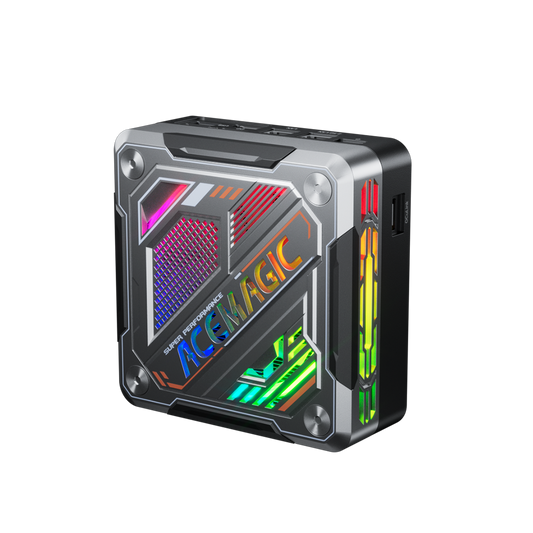
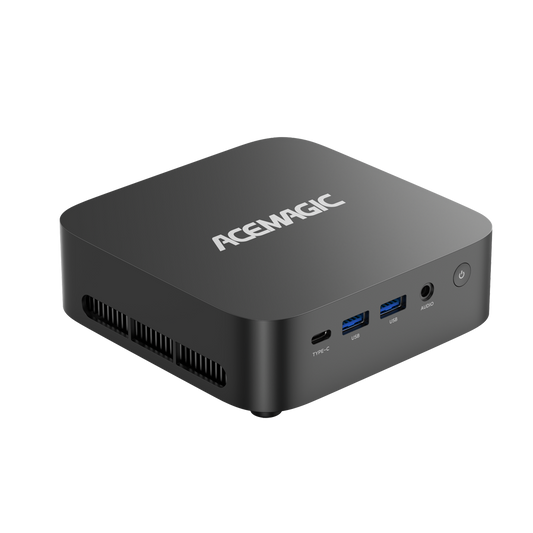
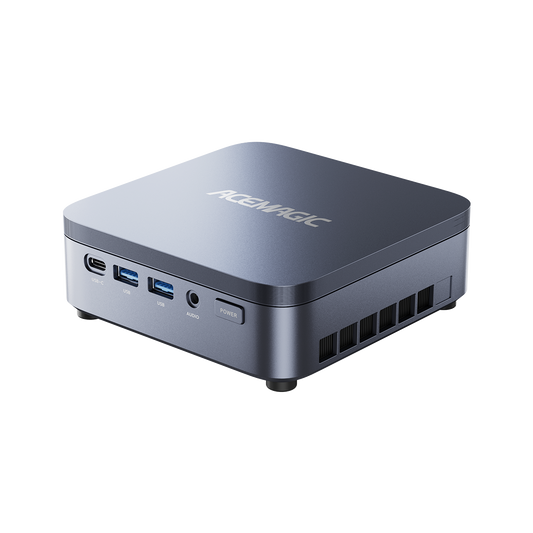
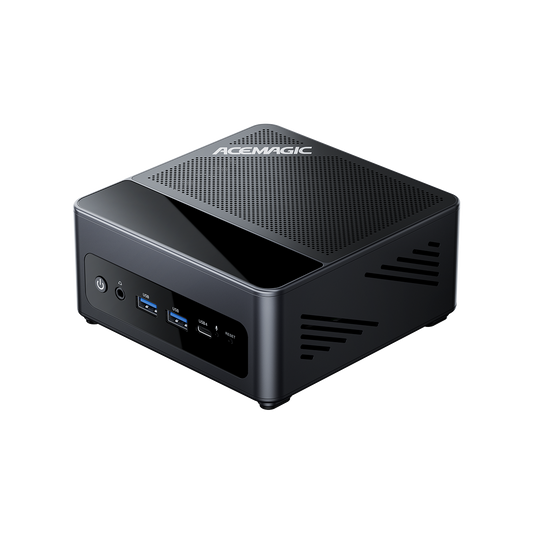
🚀 Meet the Future of Desktop AI Computing — ACEMAGIC F9A MINI AI Workstation
Small enough to fit anywhere. Powerful enough to redefine what a desktop can do.
Introducing the ACEMAGIC F9A MINI AI Workstation, powered by the AMD Ryzen AI Max+ 395 — a next-generation compact powerhouse built for AI developers, creators, professionals, and power users who demand workstation-class performance without the bulk.

🔥AI Power. Desktop Freedom. Limitless Possibilities.
With 50 TOPS NPU acceleration and up to 128GB LPDDR5X unified memory, F9A brings advanced AI capabilities directly to your desk. Run local AI models, accelerate development workflows, manage knowledge bases, and explore large AI applications — all without relying on the cloud.
💡 Your Personal AI Command Center
- AI meeting summaries in seconds
- Smarter coding assistance
- Intelligent file search
- Real-time voice transcription
- AI-powered productivity workflows
A dedicated Copilot Key puts AI access instantly at your fingertips.
⚡ Mini Size. Maximum Performance.
Packed into an ultra-compact 2.0L chassis, the F9A delivers workstation-class computing while maintaining a clean, minimalist setup.
Connect multiple systems to build your own mini AI cluster. Scale your computing power whenever your projects grow.
🎬 Built for Creators Who Think Bigger
Create without limits with:
✅ Dual USB4 ports delivering up to 40Gbps bandwidth
✅ Multi-display support with up to 8K output
✅ High-speed NVMe expansion
✅ OCuLink 4.0 for full-bandwidth external GPU upgrades
From 8K video editing and visual effects to accelerated rendering and AI-assisted creation, F9A keeps up with your imagination.
Less space. More intelligence. Infinite possibilities.